
On a desktop
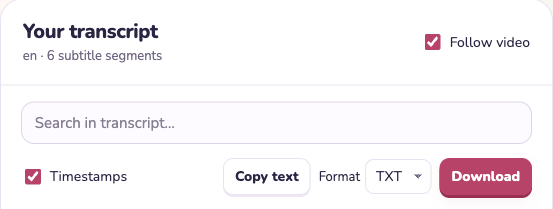
Copy the address of the video. Open the transcript downloader, paste the link, load the captions and choose a file type. Use your browser’s downloads list to reveal the saved file.
On a phone
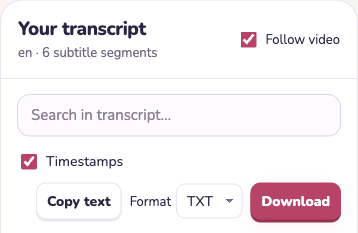
Use Share on the video and copy its link. Paste it into the downloader in your browser. After downloading, open the browser’s download manager. On an iPhone, check the Downloads location configured for Safari in the Files app.
Identify the right download
Look for the video ID and language in the filename. Open TXT in a text editor. For SRT, check that the first cue includes a start and end time. If a mobile app opens a preview, use its share or save-to-files control to keep a copy.